
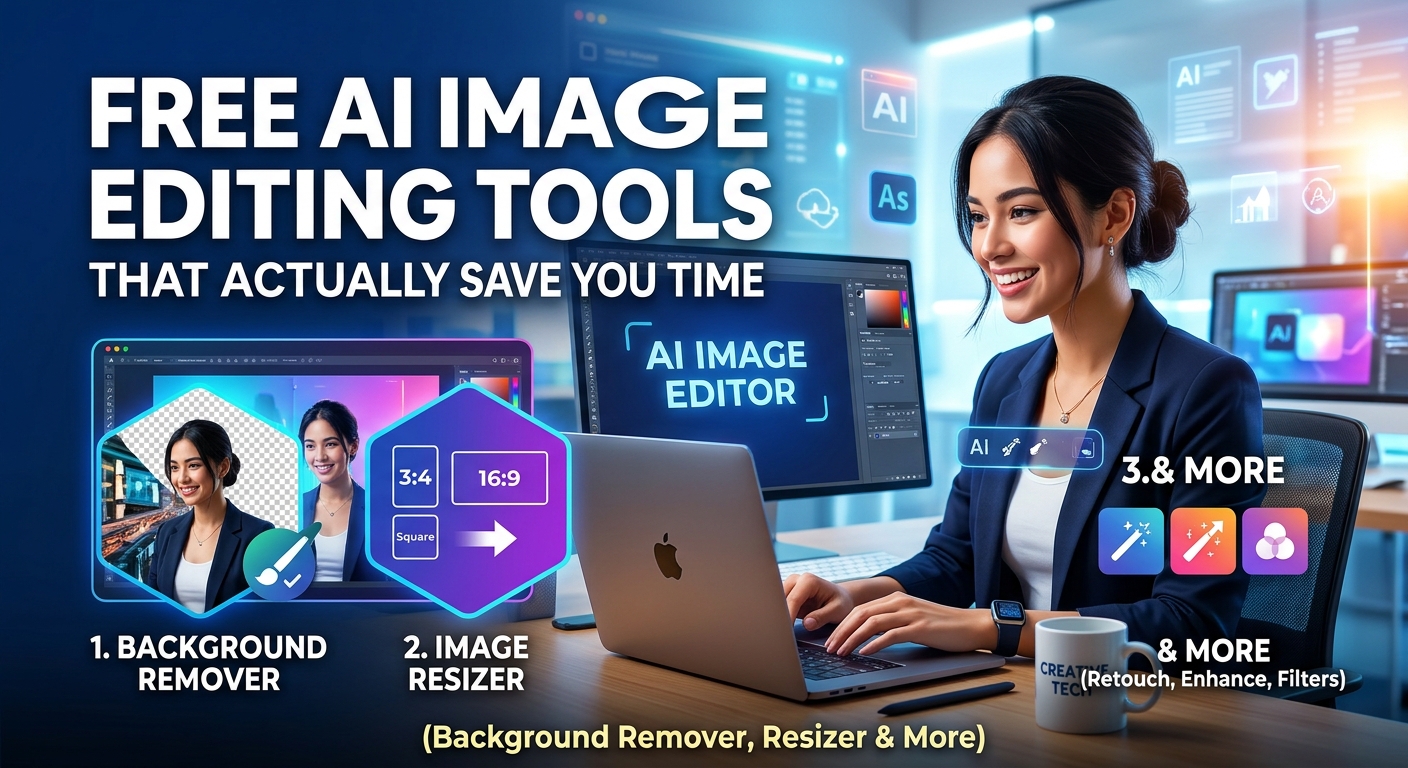
Free AI Image Editing Tools That Actually Save You Time (Background Remover, Resizer & More)
Let me guess how your last photo edit went. You opened a heavy design app, waited for it to load, hunted for the right tool, and forty minutes later you had a cutout with a weird white halo around the edges. Been there. Most of us have.
The good news is that the boring, repetitive parts of image editing can now be handled by a browser tab. Free AI image editing tools do in seconds what used to take patience and a steady hand. In this guide I’ll walk you through the jobs worth handing over to AI, how to get cleaner results, and a simple order of operations that keeps your photos sharp and your pages fast.
What AI Image Tools Are Genuinely Good At
Not every “AI-powered” label deserves your trust. These tasks, though, are where automation clearly wins:
- Background removal. The tool finds your subject and cuts it out, usually including tricky areas like hair.
- Resizing for different platforms. One photo, many formats, without stretching.
- Cropping to a focal point. Faster than fiddling with handles.
- Compression. Smaller files that still look good.
- Watermarking. Protecting your work in one batch of clicks.
Where it still stumbles? Glass, smoke, fine fur against a busy backdrop, and anything that needs taste. AI is a quick assistant, not an art director.
Remove a Background and Get a Transparent PNG
If you sell products online, run a blog, or make social graphics, a background remover is probably the single most useful tool you’ll bookmark. Marketplaces tend to want clean, plain backgrounds. Amazon, for example, asks for a pure white background on main product images. A transparent PNG lets you drop that same cutout onto white, onto a brand color, or into a lifestyle graphic.
How to get a cleaner cutout
- Start with the largest original you have, not a screenshot of it.
- Shoot against something that contrasts with your subject. A dark product on a light surface works wonders.
- Save the result as PNG. JPG can’t hold transparency, which is why so many people wonder why their “transparent” image suddenly has a white box around it.
- Zoom in on the edges after processing. If you spot leftover fringe, try the original under better lighting.
Quick rule: cut out first, resize second. Doing it the other way around softens the edges and makes the cutout look pasted on.
Make a transparent image in seconds
Upload a photo and let the AI do the cutting. No account, no complicated software.
Resize and Crop Without Wrecking Quality
Here’s a mistake I see everywhere: one image uploaded to every platform, then a shrug when it looks stretched or oddly cropped. Each network wants different proportions, and they change those preferences from time to time, so always double-check the current guidance.
Resize first, think about the platform
Instagram favors square and portrait posts, Stories and Reels like tall vertical frames, YouTube thumbnails sit in widescreen, and blog headers usually want a wide landscape ratio. Keep the aspect ratio locked unless you’re deliberately cropping. Stretching a photo is the quickest way to make a brand look careless.
Set exact dimensions
Change width and height in a few clicks, ready for social posts, store listings or your blog.
Crop to what matters
A good crop does more than trim edges. It directs the eye. Cut away clutter, put the subject off-center if it feels more natural, and leave breathing room where text will go. If you need a JPG, PNG or WebP cropped quickly, the Image Cropper handles it without fuss. And if a platform insists on a perfect square, the Image Square Maker pads your picture instead of chopping off important parts.
Compress Images for Faster Pages
Image size is not just a looks issue. Heavy photos slow your pages down, and slow pages frustrate visitors and can hold back your search performance. Compressing before you upload is one of the easiest technical wins on the web.
- Photos: JPG or WebP at a moderate compression level.
- Graphics with sharp edges or transparency: PNG.
- Check at 100% zoom before publishing. If it still looks clean, you’ve found your setting.
Try the Image Compressor to shrink the file, and the Image Converter when you need to switch formats, for example from PNG to JPG for a lighter upload.
Protect Your Work With a Watermark
If you share original photography, artwork or product shots, a subtle watermark discourages casual copying. Keep it small, semi-transparent and placed where it can’t be cropped out in one swipe. Overdoing it just ruins the picture for everyone, including your real customers. The Image Watermark Maker lets you add text or a logo in a few seconds.
A Five-Step Workflow You Can Copy
- Start with the best-quality original you’ve got.
- Remove the background if the subject needs to stand alone.
- Crop to the focal point.
- Resize to the platform’s recommended dimensions.
- Compress, add a watermark if needed, and upload.
Once you’ve done this a few times, the whole routine takes about ten minutes, even for a batch of product photos.
Common Questions
Are free image editors good enough for business use?
For cutouts, resizing, cropping and compression, yes. For very large print jobs, check the output resolution first.
Why does my cutout look rough?
Usually it’s a low-resolution original or a busy background that matches the subject’s color. Better lighting often fixes it.
Which format should I use?
PNG for transparency and crisp graphics, JPG for photos, WebP when you want smaller web files.
Start With One Task
You don’t need a design degree or a monthly subscription to put out clean visuals. Pick the one editing chore that eats most of your week, hand it to the right tool, and see how much time comes back. Everything above lives in one place, in the free Image Tools on GoToolsX.
Ready to edit faster?
Remove backgrounds, resize, crop and compress, all free and right in your browser.